Skip to content

Guide

How to make a You Never Let Her Pay video

Updated · 4 steps · about 10 minutes

You have seen the clip: a warm restaurant, the bill arriving, and the same person standing in the kitchen a second later. It is the sponge-wallet meme turned into video, and this guide covers the part that actually decides whether your version looks like the meme or like a smeared photo with movement — the photo you start with, the crop, and the resolution you pay for.

No editing app is involved. One photo goes in, a portrait MP4 comes out, and the whole thing takes about ten minutes of your attention. Below are the four steps, the three photo rules, and where the finished clip works best.

An example source photo for the restaurant comedy video

One photo, framed before payment

01

Pick the photo that already looks like a scene

Start with one well-lit photo where a single face is clearly visible: a head-and-shoulders shot, a selfie with a restaurant behind you, or a picture taken at the table. Full-body shots lose the face once the frame is cropped to 9:16, and group photos give the cut nothing to aim at, because the model needs one person to be the subject of the joke. Screenshots and heavily filtered images tend to come back muddy. JPG, PNG and WebP up to 10 MB are accepted; HEIC is not, so export a JPG from Photos first if your camera saved HEIC.
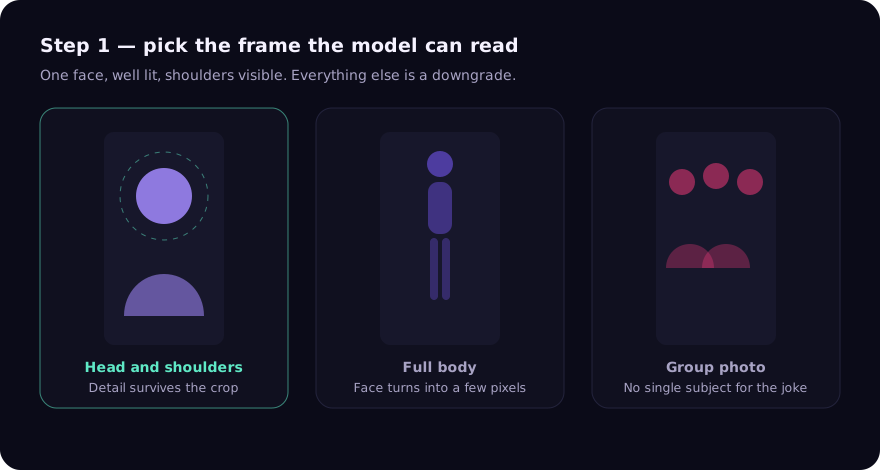
Three photo options for a sponge-wallet meme video compared: a head-and-shoulders restaurant photo works, a full-body shot loses the face, a group photo has no single subject
One visible face, well lit, shoulders in frame. That is the whole checklist.
02

Crop to 9:16 before you pay

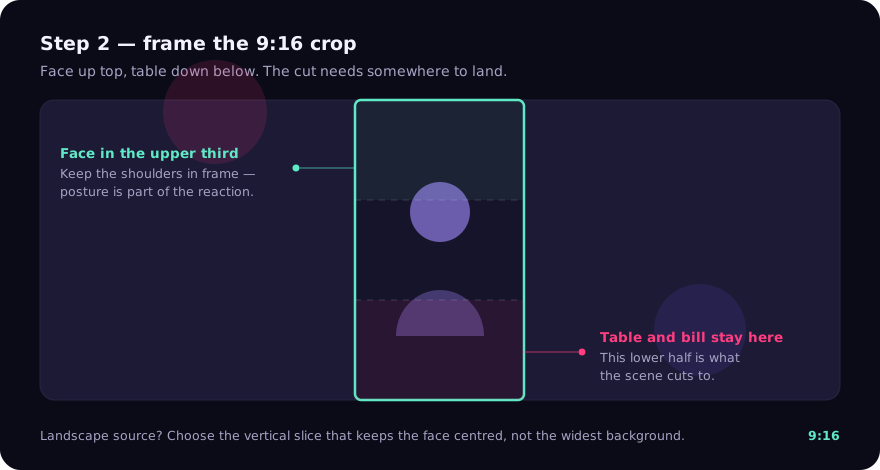
The crop dialog is where the comedy gets framed. Keep the face in the upper third so the table and the bill still have room in the lower half: that lower space is what the scene cuts to when the waiter arrives. Do not crop so tight that the shoulders disappear, because posture is part of how the character reacts. For a landscape photo the crop keeps a vertical slice, so choose the side that keeps the face centred rather than the side that keeps the widest background. Preview the frame at phone size once before you continue.

The 9:16 crop window over a landscape photo of a restaurant table, with the face in the upper third and the table and bill kept in the lower half
The crop decides where the joke lands: face up top, bill at the bottom.
03

Choose 480p or 720p and mean it

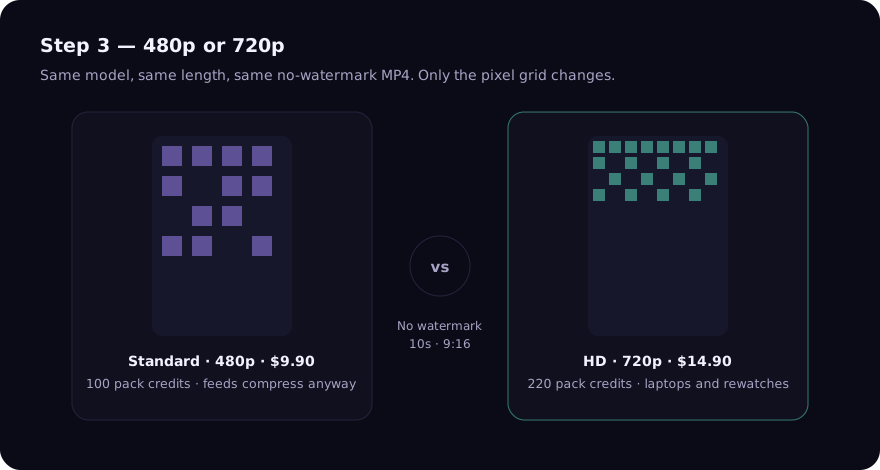
Standard (480p) is $9.90 and HD (720p) is $14.90, or 100 and 220 credits if you already hold a pack. For TikTok, Reels and Shorts, 480p is enough: those feeds compress hard, and a 10-second vertical clip still reads cleanly on a phone. Pick 720p when the clip will be watched on a laptop, on a TV screen at a party, or posted somewhere with less aggressive compression. Both are watermark-free and both come from the same model, so resolution is the only difference. A bad photo is not rescued by 720p.

Standard 480p compared with HD 720p output of the same restaurant bill meme video: 480p is enough for TikTok and Reels feeds, 720p for laptops, parties and rewatches
Same model, same ten seconds. Resolution is the only difference you are paying for.
04

Wait for the render, then download the MP4

Generation usually takes a few minutes. You can close the tab: the job keeps running, and the result waits behind the private link you were given, or in My videos if you were signed in. Preview the clip once before sharing it, because motion and facial detail vary between runs. Download the MP4 within 3 days and save it to your camera roll instead of relying on the browser tab, since the link expires after that window.

Where to post it

The clip is already the right shape

The render comes out at 9:16, which is the native frame for every short-form feed. Do not re-crop it in the app — the joke depends on what is in the lower half of the frame.

TikTok

Post the MP4 directly — it is already 9:16, so do not re-crop in the app and lose the bill in the lower frame. Keep the caption short and let the clip land: the joke is the last two seconds.

Instagram Reels

Reels crops anything that is not 9:16. Because the video is vertical natively, choose the original frame and keep the audio muted if you want people to read the scene rather than hear it.

YouTube Shorts

Shorts tolerates 480p better than most feeds. Use the 720p render here if the clip is going onto a channel where people rewatch or screenshot it.

Guide FAQ

Before you upload

The five questions that come up most often once someone has a photo ready.

Ask support

How long does it take to make the video?

Usually a few minutes from payment to a finished MP4. The job runs on our side, so you can close the tab and return to the private link later.

Do I need an account to make one?

No. A single Standard or HD video can be paid for with just an email for the receipt. An account is only needed for credit packs, so the balance can follow you between devices.

Can I use a photo of someone else?

Only with their permission. Upload images you own or have permission to use; the acceptable use policy lists what is not allowed, including public figures and minors.

Why is my clip different from the demo?

The demo shows the shape of the joke — restaurant, bill, cut to the kitchen — not a fixed output. Motion, facial detail and composition change with every photo and every run.

What happens if the render fails?

A failed credit-funded job returns its reserved credits to your balance automatically. If a single paid video cannot be delivered, contact support with the order ID and we review a refund to the original payment method.

Your photo is the only step that needs thinking about

Upload it, frame the 9:16 crop, pick a resolution. The render is a few minutes; the link stays live for 3 days.

Create your video